Spam Call and Text Blocker for iPhone: How Roblock Works
A practical look at what iPhone already handles, what Roblock adds, and how to choose the controls that fit you.
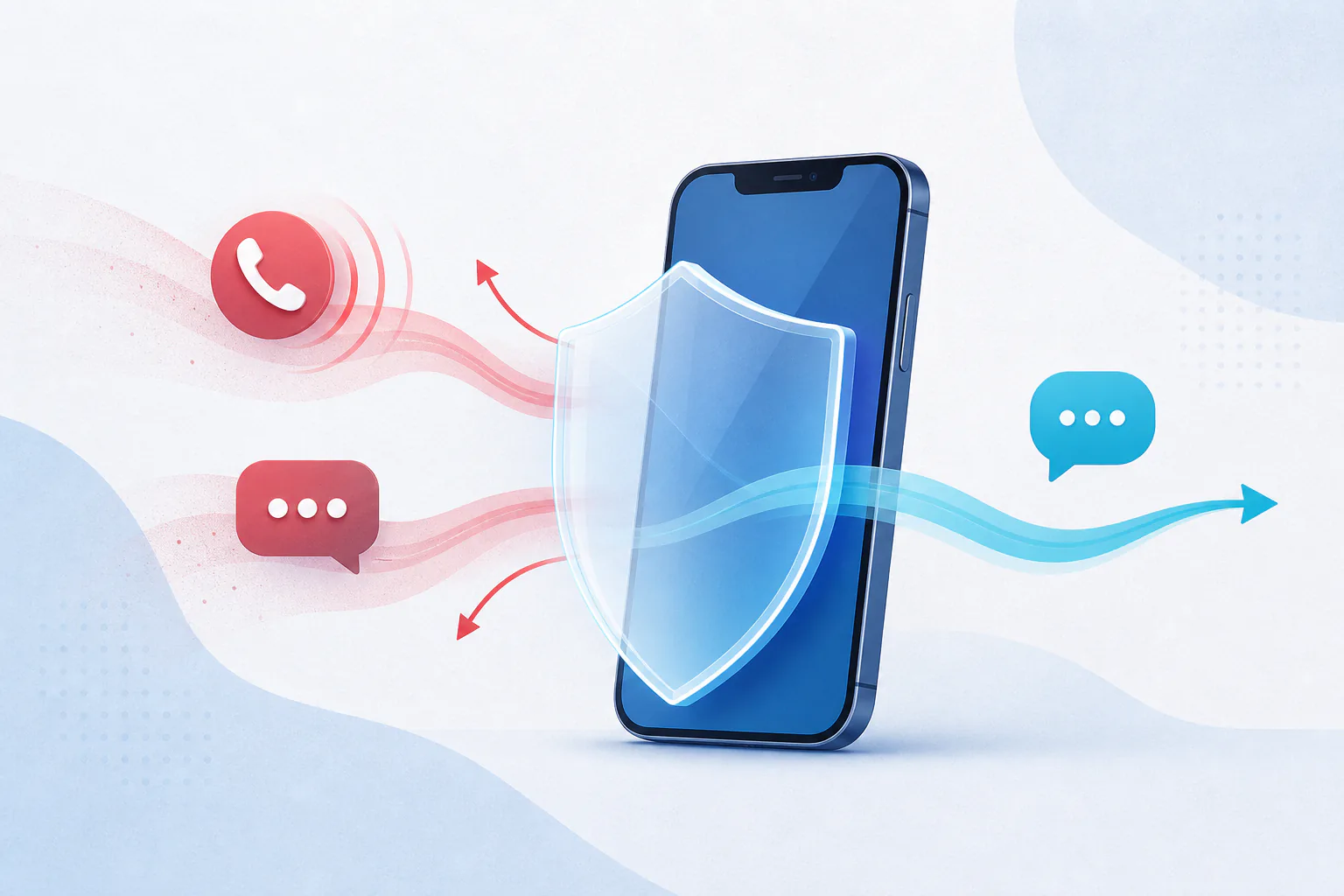
Unwanted calls and texts are easier to manage when you use a few focused controls instead of expecting one switch to make every decision. Start with the screening and filtering features already on your iPhone. Add Roblock if you also want a locally loaded call list, a choice between identifying and blocking listed calls, configured message rules, and tools for looking up and reporting unwanted numbers.
That layered approach leaves room for the calls and messages you need. A new doctor, delivery driver, school office, or contractor may not be in your contacts. Identification adds context before you choose what to do. Blocking stops listed calls. Treat identification as context, not proof of identity.
What iPhone already provides
In iOS 26, iPhone can identify incoming calls using information from Apple Business Connect, supported carriers, and supported call-identification apps. Apple places these controls at Settings > Apps > Phone > Call Blocking & Identification. See Apple’s current call-screening instructions before changing a setting, because each option treats an unfamiliar call differently.
For unsaved numbers, iOS 26 lets you ask the caller’s reason before the phone rings, silence the call to voicemail, or leave screening off. Carrier-identified spam can also be silenced and moved to a separate Spam list. If missing a legitimate unsaved call would be costly, begin with screening or identification and review the result before choosing a broader blocking rule.
Messages has its own controls. In Messages, iOS 26 can screen unknown senders into other folders and lets you enable installed third-party filtering extensions under Text Message Filter. Apple’s message-filtering guide also explains how to allow selected notifications and mark a sender as known.
Roblock works alongside these Apple controls: supported iOS extension points handle call identification or blocking, message filtering, and reporting, while number lookup is a separate app and website function.
What Roblock adds
Roblock is an iPhone app that works with supported iOS call-identification, call-blocking, message-filtering, and reporting extension points. Installing the app is only the first step: the relevant extension must also be enabled in iOS Settings.
For calls, Roblock uses a locally stored Call Directory list to help identify or block listed numbers. The extension needs to be enabled, and the app needs time to finish the list update. This is a list-based tool, not a promise that every unwanted call will be recognized.
For texts, Roblock can help filter some unwanted messages using its configured rules. The Message Filter extension must be enabled. These rules are an additional sorting layer, so you should still review filtered folders when you are expecting a sign-in code, appointment notice, delivery update, or another message from a new sender.
Roblock also supports lookup and reporting. Look up an unfamiliar number on Roblock, and report an unwanted caller without including sensitive details. Lookup results depend on available Roblock records, so a missing result does not establish that a caller is safe. If you want to understand those distinctions before acting, read how to identify an unknown caller on iPhone.
Choose identification or blocking
Choose whether Roblock identifies listed calls or blocks them. Only the selected mode is loaded by the Call Directory extension. Base your choice on how much interruption you can tolerate and how costly a missed call might be.
Choose identification when you want available context for listed calls, then let an unfamiliar call go to voicemail if you are uncertain. Choose blocking when you want listed calls blocked and are prepared to review missed activity later.
Whichever mode you choose, keep your contacts current and check voicemail or filtered call lists for expected communication. For a focused walkthrough of Apple’s controls and Roblock’s two modes, use the guide to blocking spam calls on iPhone.
Understand the message-filtering limits
Text filtering is separate from call blocking. Turning on a call-identification extension does not configure a Message Filter extension, and a rule that sorts a text does not block a call from the same visible sender.
Configured rules can help with some unwanted messages. They are not an identity check or a guarantee that a suspicious message will be caught. Do not rely on a filtered folder as proof that a message is malicious, and do not rely on the main inbox as proof that a message is genuine.
Start with Apple’s unknown-sender controls, enable the Roblock Message Filter if its rule-based approach fits your needs, and check how expected messages are being sorted. The step-by-step guide to blocking and filtering spam texts on iPhone explains the settings without overstating what a filter can decide.
Look up and report with care
When a visible number is unfamiliar, search it before returning the call. A Roblock lookup starts with a visible number and can provide only the report context available in Roblock’s records. Use voicemail, information you already trust, and an organization’s official website or app to verify an unexpected request.
When iOS offers its reporting action, Roblock can submit the category you select for an unwanted call or message. Availability and placement of that action are controlled by iOS. Keep private account, payment, health, and authentication details out of any report; describe the unwanted contact without pasting sensitive content.
The Roblock reporting guide covers the available Apple, carrier, Roblock, FTC, and FCC paths and explains what to leave out. For more Roblock resources, visit the reports page or the Roblock home page.
A practical setup checklist
- Get Roblock from the App Store. Use the official Roblock listing, then open the app and allow its call list to finish updating.
- In iOS Settings, enable the relevant Roblock call extension.
- Choose identification or blocking based on whether you prefer context or a more restrictive response to listed calls.
- If you want rule-based text sorting, enable the Roblock Message Filter separately.
- Review voicemail, unknown-caller lists, and filtered message folders until you are comfortable with the setup.
- Look up and report unwanted visible numbers without including sensitive information.
If you want these controls in one iPhone app, download Roblock from the App Store and choose the call mode that fits your needs.
Add Roblock to your iPhone call and message controls
Choose identification or blocking for listed calls, use configured message rules, and look up or report unfamiliar numbers with care.
View Roblock on the App StoreSources
- Apple Support: Screen and block calls on iPhone (reviewed 2026-07-14)
- Apple Support: Screen and filter text messages on iPhone (reviewed 2026-07-14)
- Apple App Store: Robocall Blocker - Roblock (reviewed 2026-07-14)